Comparing user segments and time periods
In reports, you can compare data for selected periods, and in some cases, for selected segments. You can also compare different segments across various periods. When switching between reports, your period and segment selections are retained.
Comparing periods
To compare your selection with another period, click Comparison  → With previous period. The periods for comparison don't have to be of the same duration. In charts, the first period is represented by solid lines, and the second by dotted lines.
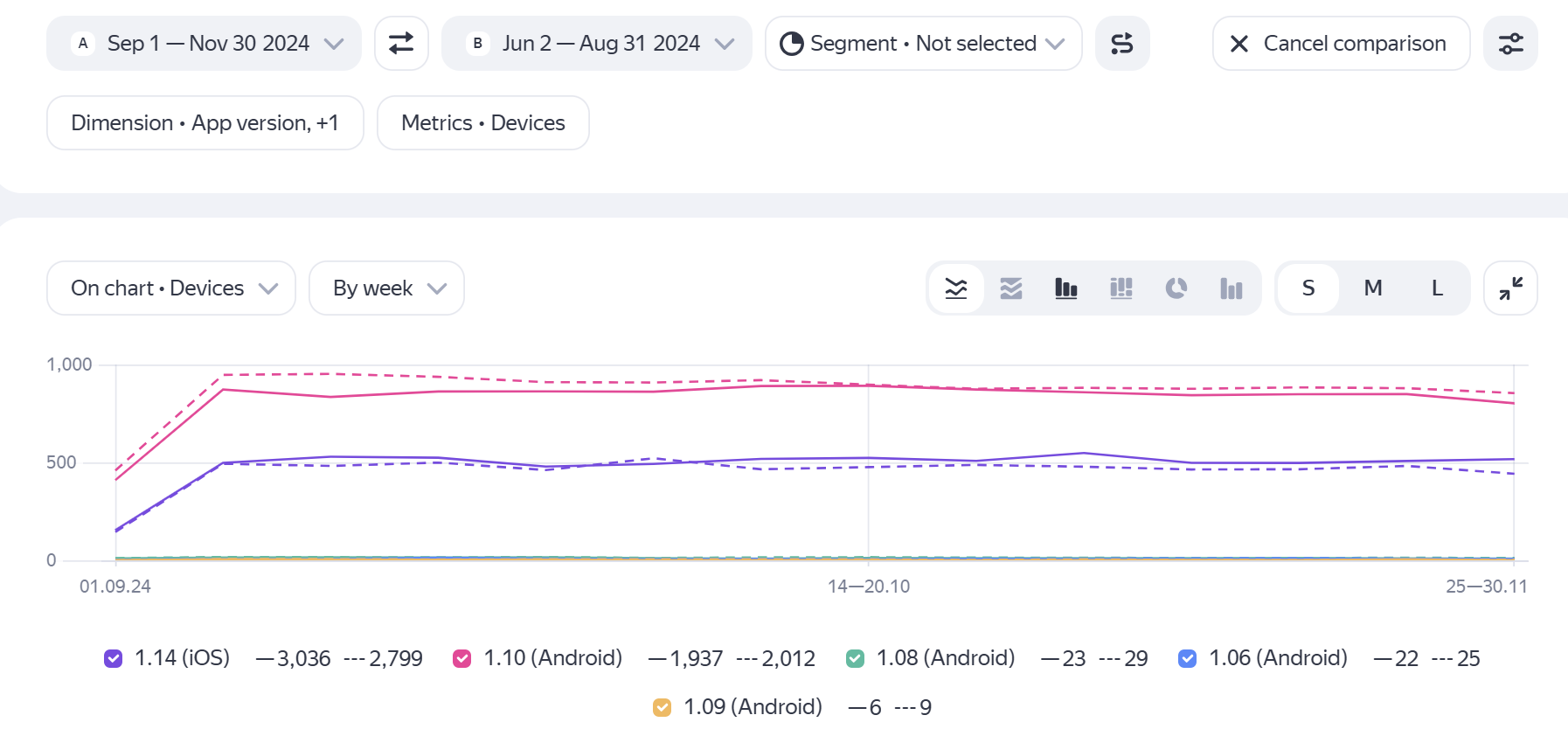
To exit comparison mode, click Cancel comparison.
Comparing segments
-
Define the first segment: click Segment not selected and select one of your saved segments or create a new one.
How to create a segment
- Click Segment not selected → Any segment
- Add conditions. Conditions can be toggled as necessary.
- Click Apply.
- To save the segment for later use, click Save as... and enter a name for the segment.
-
Enter comparison mode: click Comparison → With existing or new segment and select one of your saved segments or create a new one.
The report will display a comparison of the data for the two segments. In charts, the first segment is represented by solid lines, and the second by dotted lines.
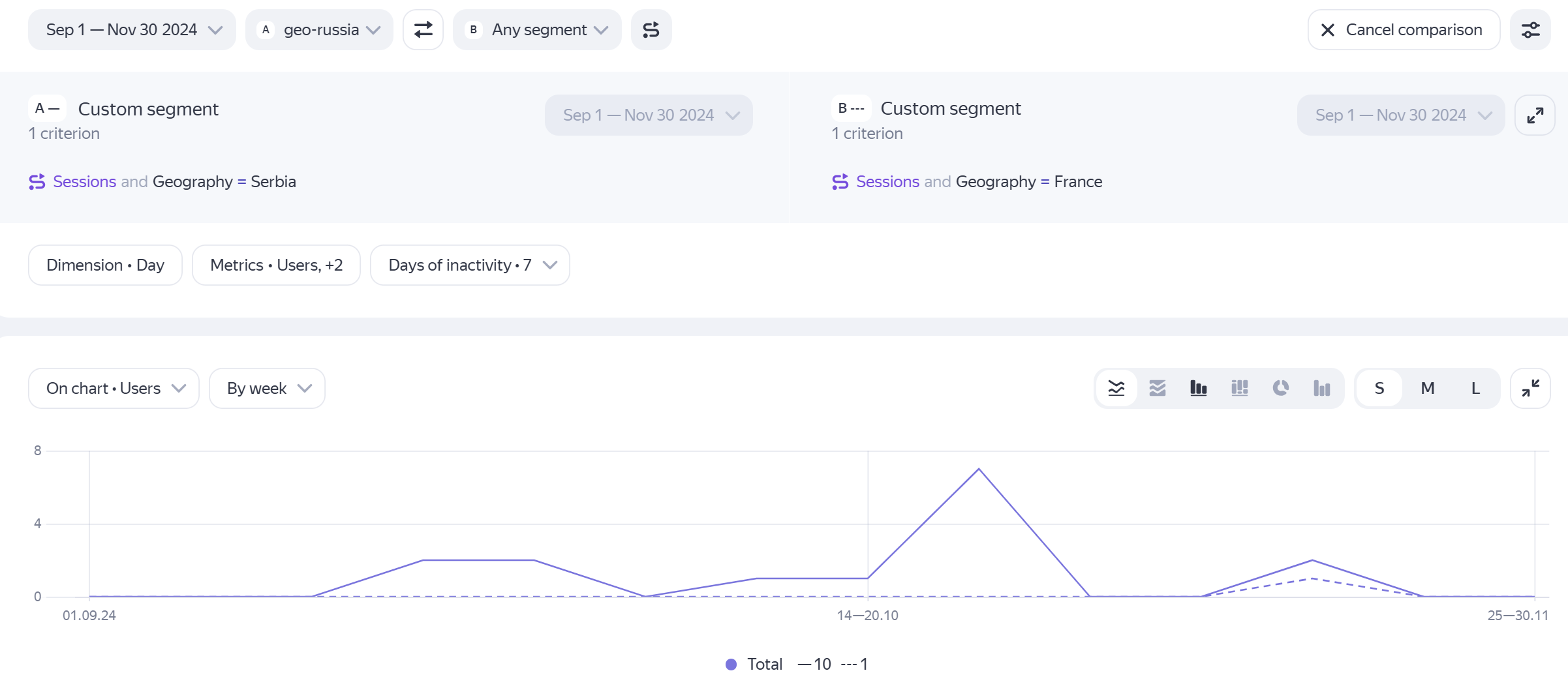
To select a different segment for comparison, click and select the desired segment.
To change the conditions in your segments, click  . Adjust the conditions, then click Apply.
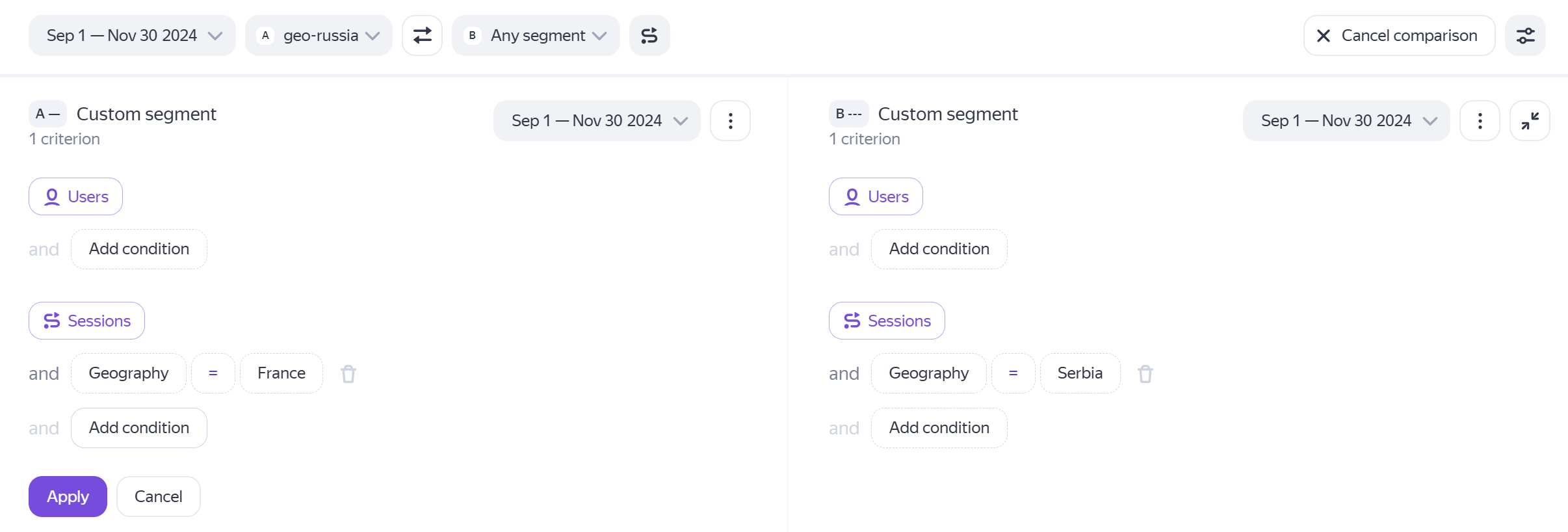
You can use different time periods when comparing segments.
To exit comparison mode, click Cancel comparison.
If you didn't find the answer you were looking for, you can use the feedback form to submit your question. Please describe the problem in as much detail as possible. Attach a screenshot if possible.